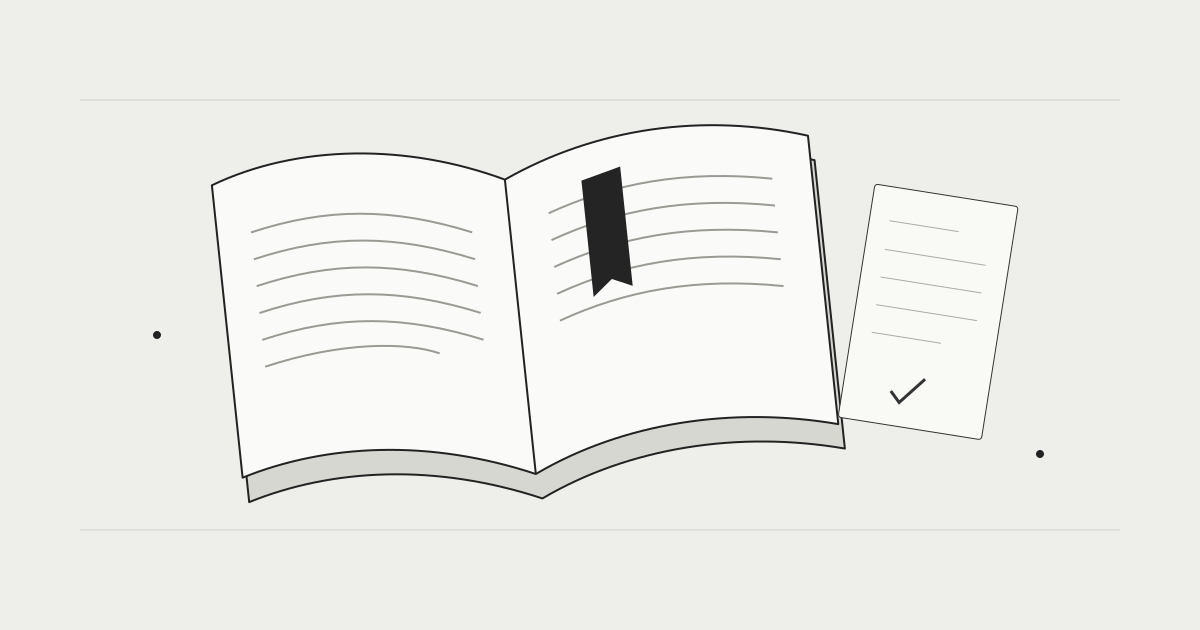
Makimono is an iPhone book reader for files you already own. It brings your books and study materials into one shelf, ready to open when you have a little time to read.
This guide takes you from importing your first file to organizing your library and keeping your place. Start with a small ZIP file and try the steps as you go.
Before you start
Makimono does not supply or sell books. Import your own documents or files you are allowed to use. Once a book has been downloaded and imported, you can read it offline. Downloading from iCloud and purchasing or restoring Pro require a connection.
1. Import your first book
- Find your book in Apple's Files app.
- Tap the add button in Makimono's library.
- Select a file or a folder containing images.
- Wait for the import to finish, then open its cover.
You can select files from iCloud Drive through Files. A cloud icon may mean the file needs to download first. Import large books on a reliable connection.
Supported formats
| Format | Free | Pro |
|---|---|---|
| Image folders | Yes | Yes |
| ZIP / CBZ | Yes | Yes |
| — | Yes | |
| RAR / CBR | — | Yes |
| Password-protected archives | — | Yes |
Encrypted archives require their correct password. Damaged files and unsupported compression methods may fail to import. If you have trouble, check whether the original opens in another app first.
2. Read with a continuous scroll
Tap a cover to open the reader. Scroll vertically to move through pages, and pinch with two fingers to zoom in or out. Use the back control or a rightward swipe to return to the library.
Your reading position is saved, so opening a book again lets you pick up where you left off. Pro also includes automatic scrolling and display adjustments. Begin at a slow scrolling speed and adjust it to suit the text or illustrations.
3. Keep series and folders separate
A series connects volumes; a folder gives books a home. Moving a volume into a folder keeps its series membership. For example, one volume can sit in a “Reading now” folder while remaining part of its original series.
Use library selection to move several books into a folder together. For study materials, try simple folders such as “Work,” “Exam preparation,” and “Read later.”
Exclude a book from automatic series
A book's settings let you exclude it from automatic series grouping. Use this for independent documents or books you prefer to keep separate. You can also review automatic series settings in the library settings.
4. Save bookmarks, notes, and clippings
Pro bookmarks mark pages you want to revisit. Notes can hold a question, a useful idea, or something to try next. Short notes are often enough to make a study document easier to return to.
Open a saved bookmark or note from its list. Swipe an unwanted item sideways to delete it. To export or share notes, select an eligible note first; sharing is unavailable when there is no eligible content.
The Pro clipping editor lets you crop a page, add text or emoji, and save or share an image. Use it for your own materials or within the permissions of the original book.
5. Carry your shelf and reading position through iCloud
Importing a file from iCloud Drive and syncing Makimono's state are separate features. Importing alone does not enable library synchronization.
With Pro, enable iCloud sync in Settings and select which records to sync. Original book files have a separate synchronization setting.
- Check that your iPhone is signed in to your Apple Account with iCloud available.
- Enable iCloud sync in Makimono's settings.
- Review the selected records. Enable original-file sync if you also want to carry the books themselves.
- Confirm synchronization has completed before changing devices or reinstalling.
Original-file synchronization preserves the folder structure in iCloud. On another device or after reinstalling, use the same Apple Account, enable sync, and download the files you need.
6. Fit reading into your day
The theme and language follow your device by default. You can override either in the Display section of Settings.
Enable reading records and reminders if you want to track a routine. Notifications require permission in iPhone settings. Add a reading widget from your Home Screen. Reading Live Activities show elapsed time and provide a route back to the reader when allowed by the device.
Start with a small routine, such as opening one book before bed or reading a document for five minutes. Let the settings follow the way you actually read.
Free and Pro
The free allowance is one series, with any number of volumes, plus ten individual books. Adding content beyond that allowance requires Pro beforehand.
Pro removes the library limit and adds PDF, RAR and encrypted archives, automatic scrolling, bookmarks and notes, clippings, folder locks, and iCloud synchronization.
When Pro expires, your books and reading positions are retained. If your library exceeds the free allowance, opening any book requires Pro until you bring the library back within the allowance. Pro-only settings fall back to free behavior while saved settings and existing locks remain stored.
Check the price and renewal period in the purchase screen before subscribing. Manage or cancel subscriptions through Apple.
When something does not work
A book will not import
Check the allowance, file format, and iCloud download status. Check the password for an encrypted archive.
Pro is not reflected
Connect to the internet and try Restore purchases in Settings. Check the Apple Account used for the purchase. TestFlight test purchases and App Store production purchases are separate.
A synced book will not open
Its library record may have synced while the original is still waiting to download. Check original-file synchronization and download status.
If you still need help, contact support with the app version, device, and steps that reproduce the issue. Do not include book images, passwords, or payment details.
Start with one book. Read a few pages, return to your shelf, and open it again later. A simple way back to your next page is what Makimono is designed to offer.
MAKIMONO
Make room for your next book.
A quiet home for your own book files.
Coming to the App StoreExplore Makimono ↗